Linked list box
It is a list-based control used to select linked hierarchical data.
When selecting a higher-level data in the Linked ComboBox, the sub-list of the selected data will be displayed as items in the next list box. When an item is selected, the value of the selected item is added to the value of the higher-level item. If a top-level item is selected, all previously selected sub-item values are removed, and the current selected value is replaced.
By selecting the forward or backward option, the sub-list expands.
The items in the linked list box are composed of "value", "label", and "parentValue".
| Boundary | Key | Action |
|---|---|---|
| List | Shift upwards | |
| List | Shift downwards | |
| List | Shift left | |
| List | Shift right | |
| Item | Select item |
Web accessibility
You should provide a label.
- Provide a label to the linked list box by configuring the fieldLabel property.
Provide a information when an item reader has been moved from the displayExp of the linked list box.
Example
exports.getType = function(value){
	var llb = app.lookup("llb1");
	var item = llb.getItemByValue(value);
	var lastSelection = llb.getSelectionLast();
	var resultType = "";

	if(lastSelection == null){
		return resultType;
	}

	if(item.depth == 0){
		return "hasChild";
	}

	if(item.depth == lastSelection.depth){
		if(lastSelection.children.length > 0){
			resultType = "hasBoth";
		}else {
			resultType = "hasParent";
		}
	} else if(item.depth > lastSelection.depth){
		resultType = "hasParent";
	} else if(item.depth < lastSelection.depth){
		resultType = "hasBoth";
	}

	return resultType;
}

linkedListBox_1.displayExp = "switch(@getType(value)){\n\tcase 'hasChild' : label + sstr(', Expanded sub-item list moves with the right arrow key. ',['text-hidden'])\n\tcase 'hasParent' : label + sstr(', The list of parent items moves with the left arrow key. ',['text-hidden'])\n\tcase 'hasBoth' : label + sstr(', Expanded sub-item list moves with the right arrow key. The list of parent items moves with the left arrow key.',['text-hidden'])\n\tdefault : label\n}";
Control component
Description for the composition of the linked list box
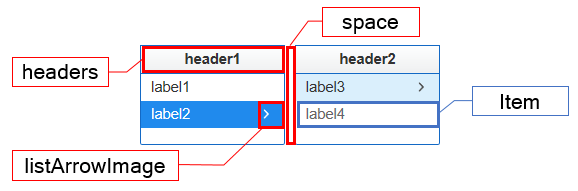
Component
| Component | Type | Description |
|---|---|---|
| headers | String[] | Header of the linked list box. |
| Item | cpr.controls.TreeItem | Item of the linked list box. |
| listArrowImage | String | An arrow image of the linked list box. |
| space | String | Gap between the lists of linked list box. |
Example: Using the components
var linkedlistbox = app.lookup("llb1");
linkedlistbox.headers = ["header1", "header2", "header3"];
linkedlistbox.space = "10px";
linkedlistbox.listArrowImage = "./image/arrow.jpg";

/* Import every item of the lniked list box.*/
var items = itemslinkedlistbox.getItems();
console.log(items[0]);						// {label: "label1", value: "value1", parentValue: "root"}

/* Select item with index'0' from the linked list box.*/
linkedlistbox.selectItem(0);
console.log(linkedlistbox.value);			// value1
Style component
The linked list box expands its sub-list when a parent item is selected. As the sub-list grows, the width of the list is evenly divided across the total width.
The linked list box is composed of lists and items. Separate classes are applied based on the items.
Theme file: linked-listbox.part.less
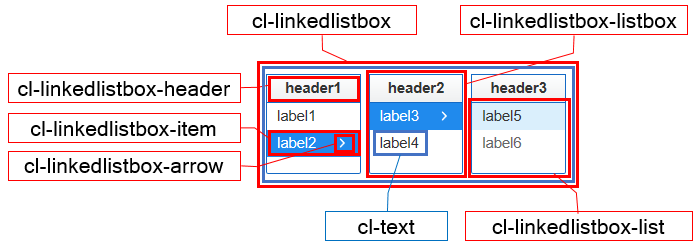
Component
| Component | Description |
|---|---|
| cl-linkedlistbox | Overall style of the linked list box. |
| cl-linkedlistbox-listbox | Style for the header and list section of the linked list box. |
| cl-linkedlistbox-header | Header style of the linked list box. |
| cl-linkedlistbox-list | Style for the item list of the linked list box. |
| cl-linkedlistbox-item | Style for the item of the linked list. |
| cl-linkedlistbox-arrow | Overall style of the linked list box. |
| cl-text | Text style for the item of the linked list box. |
State element
| Component | State element | Description |
|---|---|---|
| cl-linkelistbox-item | cl-selected | Style for the item selection of the linked list box. |
| cl-hover | Style for hovering an item of the linked list box. | |
| cl-disabled | Style for the disabled item of the linked list box. | |
| cl-folder | Style for the item with the sublist of the linked list box. | |
| cl-leaf | Style for the item without the sublist of the linked list box. |
Changing the style property by using the CSS file
@CHARSET "UTF-8";

/* Style for the header of the linked list box */
.cl-linkedlistbox .cl-linkedlistbox-listbox .cl-linkedlistbox-header {
  	border: 1px solid green;
  	background-image: linear-gradient(to bottom, #FEFFFF, #EFF0F1);
}

/* Style for the sublist of the linked list box */
.cl-linkedlistbox .cl-linkedlistbox-listbox .cl-linkedlistbox-list {
  	border: 1px solid red;
}

/* Background color for the item selected from the linked list box */
.cl-linkedlistbox-list .cl-linkedlistbox-item.cl-selected {
	background-color: yellowgreen;
}

/* Image for the arrow folder of the linked list box */
.cl-linkedlistbox .cl-linkedlistbox-listbox .cl-linkedlistbox-list .cl-linkedlistbox-item .cl-linkedlistbox-arrow.cl-folder {
  	width: 16px;
  	height: 16px;
  	background-image: url(icons/drill-down.png);
}
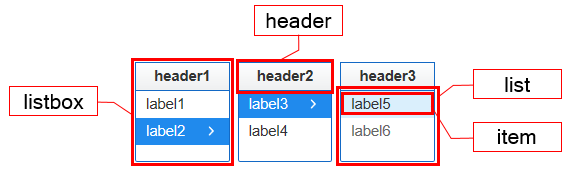
Component
| Component | Description |
|---|---|
| listbox | Styler for the header and list of the linked list box. |
| header | Styler for the header of the linked list box. |
| list | Styler for the item list of the linked list box. |
| item | Styler for the item of the linked list box. |
Changing the style property by using the styler
// UI Configuration
var linkedListBox_1 = new cpr.controls.LinkedListBox("llb1");

/* Default style of the linked list box */
/* (Multiple settings can be configured using JSON data.) */
linkedListBox_1.style.css({
	"background-color": "green",
	"border": "2px solid red"
});

/* Default style of the linked list box(For single selection) */
linkedListBox_1.style.css("background-color": "green");

/* Style for the box of the linked list box */
linkedListBox_1.style.listbox.css({
	"border": "2px solid blue"
});

/* Style for the header of the linked list box */
linkedListBox_1.style.header.css({
	"font-weight": "bold"
});

/* Style for the item list of the linked list box */
linkedListBox_1.style.list.css({
	"color" : "yellow"
});

/* Style for the item of the linked list box */
linkedListBox_1.style.item.css({
	"background-color": "red"
});
Example
A linked list box is composed of connected list-type data where selecting a parent item expands the corresponding child list. The data for the linked list box is set through creating precursor data or binding to a data set.
var linkedListBox_1 = new cpr.controls.ComboBox("llb1");

/* Configure preceding data */
var item_1 = new cpr.controls.TreeItem("pre_label1", "pre_value1", "root");
linkedListBox_1.addItem(item_1);
linkedListBox_1.addItem(new cpr.controls.TreeItem("pre_label2", "pre_value2", "root"));
linkedListBox_1.addItem(new cpr.controls.TreeItem("pre_label3", "pre_value3", "pre_value1"));
linkedListBox_1.addItem(new cpr.controls.TreeItem("pre_label4", "pre_value4", "pre_value1"));

/* Configure binding for the DataSet */
var dataset = new cpr.data.DataSet("ds1");
dataset.parseData({
	columns: [
		{name: "label"},
		{name: "value"},
		{name: "parent"}
	],
	rows: [
		{label: "label1", value: "value1", parent: "root"},
		{label: "label2", value: "value2", parent: "root"},
		{label: "label3", value: "value3", parent: "value1"},
		{label: "label4", value: "value4", parent: "value3"}
	]
});

linkedListBox_1.setItemSet(dataset, {label: "label", value: "value", parentValue: "parent"});
linkedListBox_1.redraw(); //Renew control

console.log(linkedListBox_1.getItems());
//[pre_value1, pre_value2, pre_value3, pre_value4, value1, value2, value3, value4]; Array of items
Related API: value , cpr.controls.TreeItem , addItem , setItemSet , redraw , getItems , LinkedListBox API overview
Select direction for the expansion
A linked list box allows you to set the direction in which the child list expands using the 'direction' property. The forward direction expands from left to right, while the reverse direction expands from right to left.
var linkedListBox_1 = new cpr.controls.LinkedListBox("llb1");
linkedListBox_1.addItem(new cpr.controls.TreeItem("label1", "value1", "root"));
linkedListBox_1.addItem(new cpr.controls.TreeItem("label2", "value2", "root"));
linkedListBox_1.addItem(new cpr.controls.TreeItem("label3", "value3", "value1"));
linkedListBox_1.addItem(new cpr.controls.TreeItem("label4", "value4", "value1"));

/* Sublist expands to the left. */
linkedListBox_1.direction = left;

/* Configure the value of the linked list box*/
linkedListBox_1.values = ["value1", "value3"];
Related API: direction , values , cpr.controls.TreeItem , addItem , LinkedListBox API overview
Drag and drop event
A linked list box provides drag and drop events to allow moving items from one list box to the same or different list box. It includes the 'allowDrop' and 'draggableItem' properties as related attributes.
var linkedListBox_1 = new cpr.controls.LinkedListBox("llb1");
var linkedListBox_2 = new cpr.controls.LinkedListBox("llb2");

linkedListBox_1.addItem(new cpr.controls.TreeItem("label1", "value1", "root"));
linkedListBox_1.addItem(new cpr.controls.TreeItem("label2", "value2", "root"));
linkedListBox_1.addItem(new cpr.controls.TreeItem("label3", "value3", "value1"));
linkedListBox_1.addItem(new cpr.controls.TreeItem("label4", "value4", "value1"));

linkedListBox_2.addItem(new cpr.controls.TreeItem("label5", "value5", "root"));
linkedListBox_2.addItem(new cpr.controls.TreeItem("label6", "value6", "root"));
linkedListBox_2.addItem(new cpr.controls.TreeItem("label7", "value7", "value5"));
linkedListBox_2.addItem(new cpr.controls.TreeItem("label8", "value8", "value5"));

/* Configure to allow item drag */
linkedListBox_1.draggableItem = true;
/* Configure to allow item drop */
linkedListBox_2.allowDrop = true
Related API: cpr.controls.TreeItem , addItem , draggableItem , allowDrop , LinkedListBox API overview
User definition of drag and drop(DataSet)
The drop event or dragover event provides default behavior. To ignore this behavior, please use event.preventDefault(). The following code customizes the drop action in a tree connected to a dataset.
var linkedListBox_1 = new cpr.controls.LinkedListBox("llbx1");
/* Configure to allow item drag */
linkedListBox_1.draggableItem = true;
/* Configure to allow item drop */
linkedListBox_1.allowDrop = true
/* Connect the ItemSet to the linked list box */
linkedListBox_1.setItemSet(app.lookup("ds1"),{label:"label",value:"value",icon:null,parentValue:"parentValue"});

/* Definition of drop event */
linkedListBox_1.addEventListener("drop",function(e){
  var linkedlistbox = e.control;
  e.preventDefault();// Prevent the default action of the linked list's drop.
  var sourceData = null;
  try{
    sourceData = JSON.parse(e.dataTransfer.getData("text")); // The dragged data can be imported through e.dataTransfer.getData("text").
  }catch(exception){
  }
  var canAction = sourceData && sourceData['from']; // Verify if it is a proper drag data.
  if(!canAction){
    return;
  }

  var targetElement;
  if(!e.target.closest){ // Does not support closest IE(additional implementation is required)
    return;
  }
  targetElement = e.target.closest("[role='option']");
  var after = true; // Determine the position of the additional item above or below the target item.
  if(targetElement != null){
    var rect = targetElement.getBoundingClientRect();
    var top = e.pageY - rect.top;
    var bottom = rect.top + rect.height - e.pageY;
    if(top < bottom){
      after = false;
    }
  }else if(targetElement == null){
    targetElement = e.target.closest("[role='listbox']");
    if(targetElement == null){
      return;
    }
  }

  var targetItem = e.targetObject.item;
  var isSelf = sourceData.from.uuid == linkedlistbox.uuid; // Verify whether the data has been dragged within the same control.
  var items = []; // Use dragged data to create an item.
  sourceData.content.forEach(function(each){
    var item = new cpr.controls.TreeItem(each.label,each.value,each.parentValue);
    if(each['icon']){
      item.icon = each['icon'];
    }
    items.push(item);
  });

  for(var i=0;i < items.length;i++){
    var each = items[i];
    //When an item is brought from another control, it cannot be added if the value is the same.
    if(isSelf == false && linkedlistbox.getItemByValue(each.value) != null){
      continue;
    }

    if(targetItem){
       each.parentValue = targetItem.parentValue; // Changed to be the same as the parent target of the item.
       if(isSelf == false){ // When dropping an item dragged from another control.
         if(after){
           var targetIndex = linkedlistbox.getIndex(targetItem);
           var row = linkedlistbox.dataSet.insertRow(targetIndex,true);
           row.setValue(linkedlistbox.itemSetConfig.label,each.label);
           row.setValue(linkedlistbox.itemSetConfig.value,each.value);
           row.setValue(linkedlistbox.itemSetConfig.parentValue,each.parentValue);

           targetItem = each;
         }else{
           var targetIndex = linkedlistbox.getIndex(targetItem);
           var row = linkedlistbox.dataSet.insertRow(targetIndex,false);
           row.setValue(linkedlistbox.itemSetConfig.label,each.label);
           row.setValue(linkedlistbox.itemSetConfig.value,each.value);
           row.setValue(linkedlistbox.itemSetConfig.parentValue,each.parentValue);
         }
       }else{ // When dropping an item dragged from the same control.
         if(after){
           var sourceIndex = linkedlistbox.getIndex(each);
           var targetIndex = linkedlistbox.getIndex(targetItem);
           var row = linkedlistbox.dataSet.getRow(sourceIndex);
           row.setValue(linkedlistbox.itemSetConfig.label,each.label);
           row.setValue(linkedlistbox.itemSetConfig.value,each.value);
           row.setValue(linkedlistbox.itemSetConfig.parentValue,each.parentValue);
           linkedlistbox.dataSet.moveRowIndex(sourceIndex,targetIndex,true);
           targetItem = each; // If multiple items are being moved, the reference item needs to be changed.
         }else{
           var sourceIndex = linkedlistbox.getIndex(each);
           var targetIndex = linkedlistbox.getIndex(targetItem);
           var row = linkedlistbox.dataSet.getRow(sourceIndex);
           row.setValue(linkedlistbox.itemSetConfig.label,each.label);
           row.setValue(linkedlistbox.itemSetConfig.value,each.value);
           row.setValue(linkedlistbox.itemSetConfig.parentValue,each.parentValue);
           linkedlistbox.dataSet.moveRowIndex(sourceIndex,targetIndex,false);
         }
      }
    }else{
      if(isSelf == false){
        each.parentValue = targetElement.getAttribute("data-id"); //If the target item is not present, set the parent value of the list.
        linkedlistbox.addItem(each);
      }
    }
  }
  linkedlistbox.redraw();
});
Related API: cpr.controls.TreeItem , itemSetConfig , dataSet , getItemByValue , LinkedListBox API overview