This chapater describes how to create a common module by using method or property in a single App, and which can then be used in multiple Apps. User will also learn how to make reusable UDC out of set of controls with composite functions.
1) Create common module
Select File > New > New common module from global menu or New > New common module from context menu to create common module file.
Add common module from Context menu
2. In New Common Module Wizard, set file name to “common.module.js" and click [Finish] button to create a file.
Create new common module
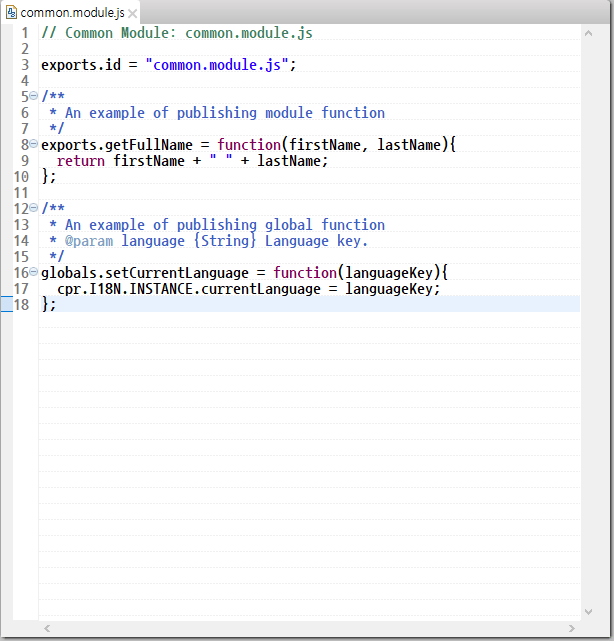
Module function and global function can be exported as exports.functionName and globals.functionName respectively. As shown below, getFullName function used in Expression is exported to module function and setCurrentLanguage function to change language is exported to global function.
Create common module Script common.module.js
// Common Module: common.module.js

exports.id = "common.module.js";

/**
 * An example of publishing module function
 */
exports.getFullName = function(firstName, lastName){
  return firstName + " " + lastName;
};

/**
 * An example of publishing global function
 * @param language {String} Language key.
 */
globals.setCurrentLanguage = function(languageKey){
  cpr.I18N.INSTANCE.currentLanguage = languageKey;
};
Remove getFullName function from script in index.clx and modify so that the function defined in the module can be used.
// Call module.
var commonModule = cpr.core.Module.require("common");

// Set default language of the page to ‘en’.
// cpr.I18N.INSTANCE.currentLanguage = "en";

// The function published as global can be used without going through module.
setCurrentLanguage("en");

// Return full name.
// function getFullName(firstName, lastName) {
//  return firstName + " " + lastName;
// }

// Register a user defined function which can be used in Expression.
// cpr.expression.ExpressionEngine.INSTANCE.registerFunction("fullName", getFullName);

//The module function can be used via module.
cpr.expression.ExpressionEngine.INSTANCE.registerFunction("fullName", commonModule.getFullName);

...

/*
 * Call when search Event occurs in User Defined Controls.
 */
function onSearchSearch(/* cpr.events.CUIEvent */ e){
  /**
   * @type udc.search
   */
  var search = e.control; // Get udc.searchControl.
  var master = app.lookup("grid"); // Get Grid Control.

  /*
   * Get search keyword. The search keyword is input value of udc.search Control.
   */
  var word = search.searchWord;

  master.filter('fullName(firstName, lastName) *= "' + word + '" || company *= "' + word + '"');
}
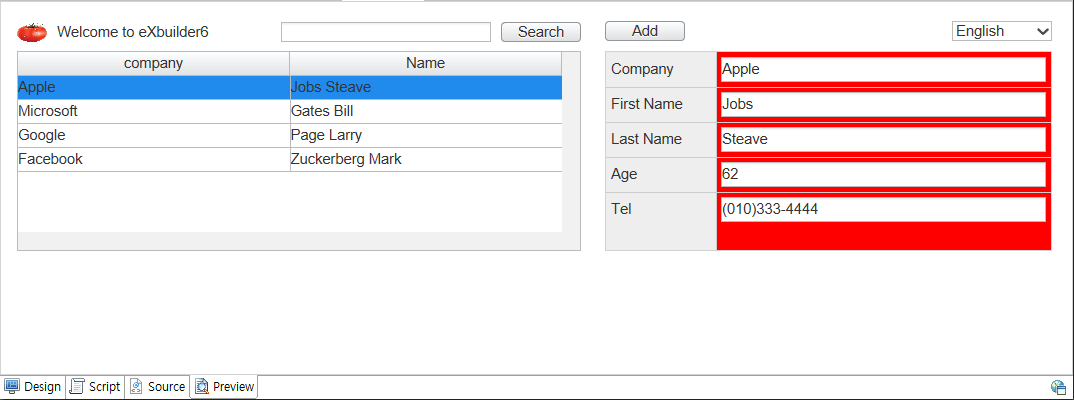
Check whether full name is displayed and language change using the module is working properly in Preview.
Result Preview
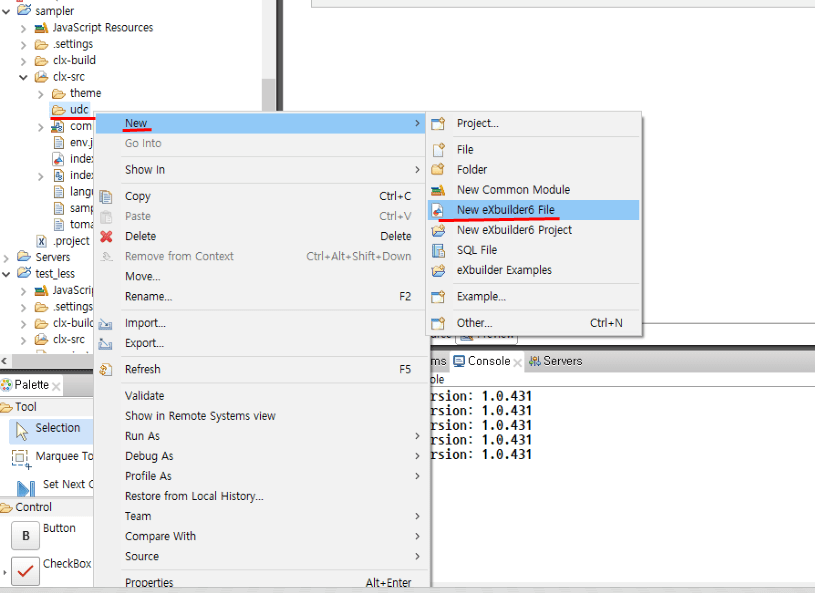
Create Design file for eXBuilder6 in Source folder > udc folder to enable UDC Control. Create search.clx file in udc folder.
Create UDC Control file
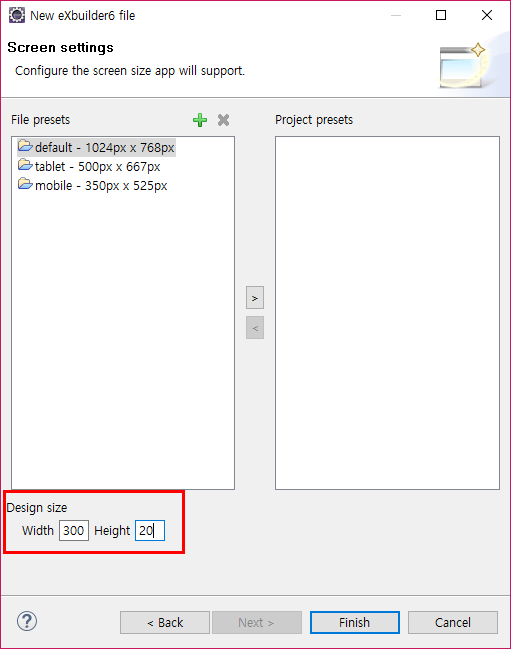
Select [ ] button from Design Editor toolbar to open screen configuration dialog box. Set height to 20px.
Set UDC Design size
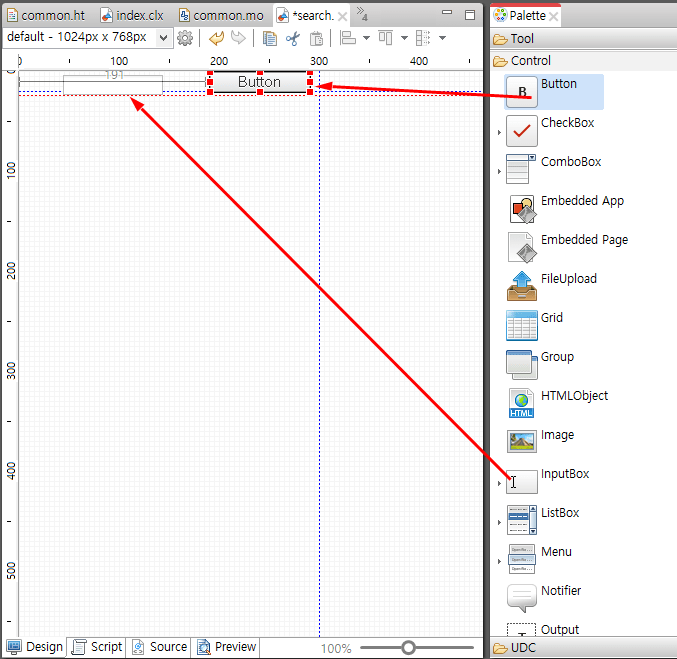
Add Input Control and button Control and specify Layout as below.
Add Control button in Design Editor
Input box
Input box Layout
Button
Button Layout
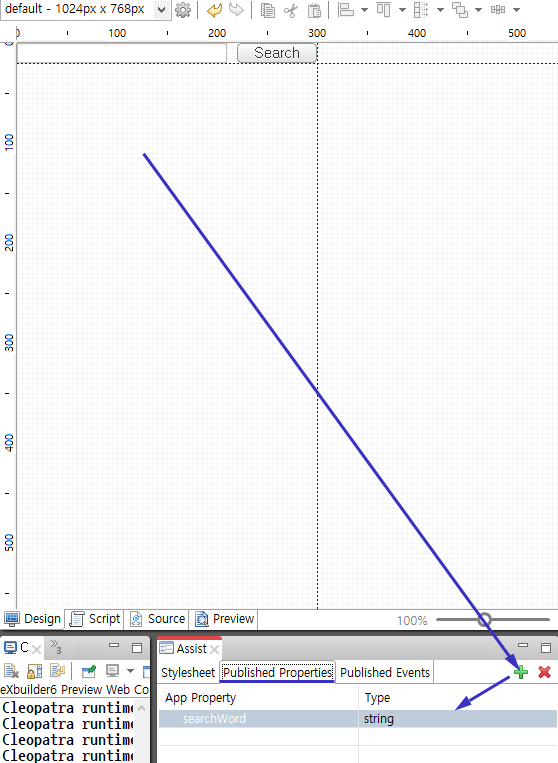
Select body and select [ ] button under Published Property Tab in Assist view to add Property. Specify Property name to searchWord and set type to string. Now, searchWord Property is accessible from external location.
Add App Property
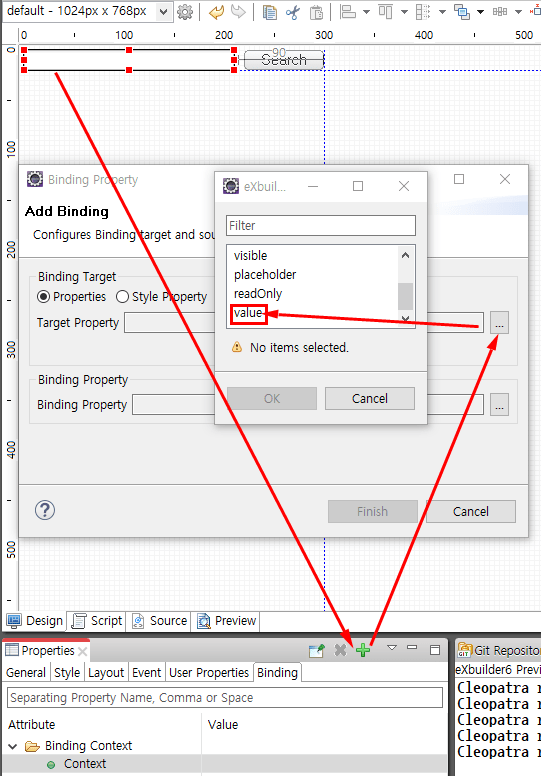
Select Input box and add Property Binding under Binding Tab in Properties view. Set Binding target to value Property.
Bind value to Input box
Set Binding Source type to App Property Binding and specify App property to searchWord Property, the Published Property.
App Property [searchWord] bind
If Binding is configured as below, Input Control value can be obtained by accessing searchWord Property of UDC Control.
Result of Binding Editing
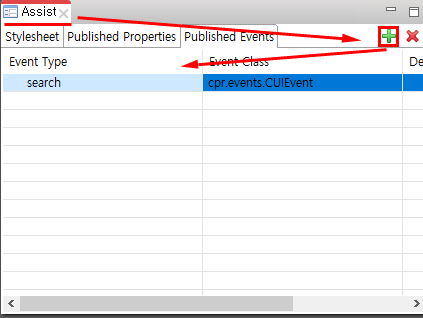
Select body and press [ ] button under Published Event Property Tab in Assist view to add Property. Set Event type to search and Event class to cpr.events.CUIEvent. Now, searchEvent can be added from an external location.
Publish App Event
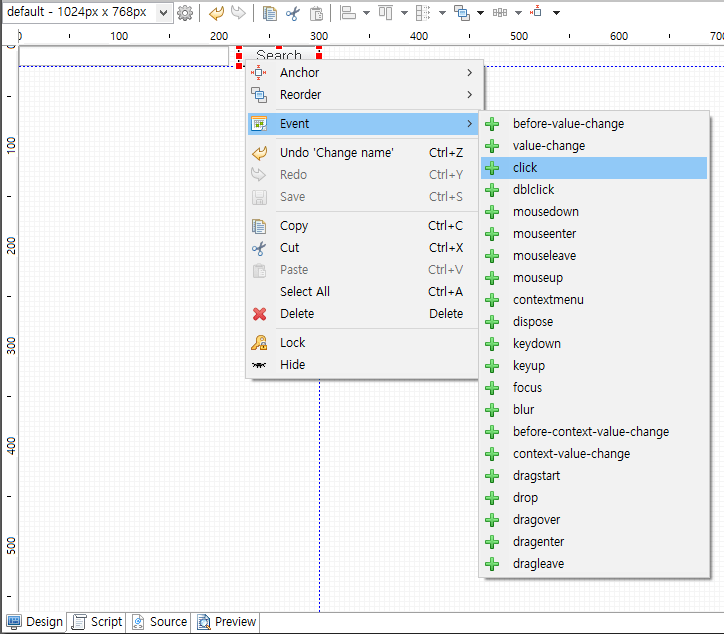
Select button and Event > click item from context menu to add click event to the button.
Add click event to Search button
Go to Script Tab to create and dispatch CUIEvent named search. Click button to generate searchEvent in UDC Control.
Call published Event "search"
search.js
/*
 * Call when click Event occurs in “Search" button.
 * Event that occurs when a user clicks Control.
 */
function onButtonClick(/* cpr.events.CMouseEvent */ e){
  var event = new cpr.events.CUIEvent("search");
  app.dispatchEvent(event);
}
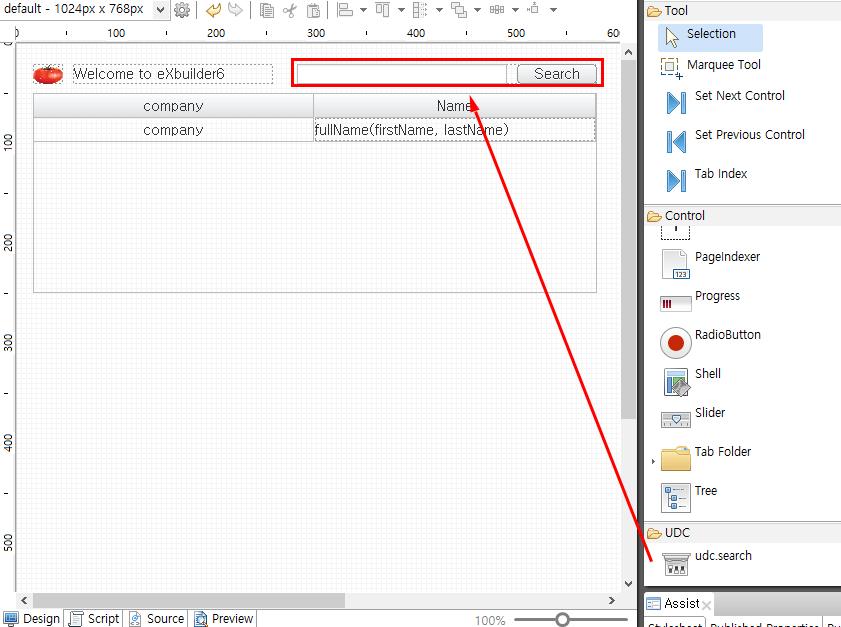
Go to eXBuilder6 file to check udc.search Control is registered in UDC drawer of Palette. Add udc.search Control to Design screen.
Use Control in UDC of Palette
2. Select udc.search Control and click Event > search item from context menu to create logic for published searchEvent.
Add Event search in UDC
Create Script for searchEvent.
/*
 * Call when search Event occurs in User Defined Controls.
 */
function onSearchSearch(/* cpr.events.CUIEvent */ e){
  /**
   * @type udc.search
   */
  var search = e.control; // Get udc.search Control.
  var master = app.lookup("grid"); // Get Grid Control.

  /*
   * Get search keyword.The search keyword is input value of udc.search Control.
   */
  var word = search.searchWord;

  master.filter('fullName(firstName, lastName) *= "' + word + '" || company *= "' + word + '"');
}
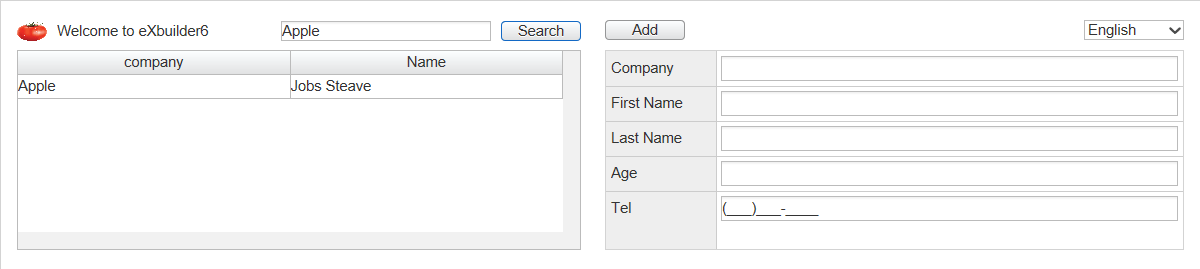
Under Preview Tab, check whether the filter is working properly as below.
Check result under Preview Tab


 ] button from Design Editor toolbar to open screen configuration dialog box. Set height to 20px.


 ] button under Published Property Tab in Assist view to add Property. Specify Property name to searchWord and set type to string. Now, searchWord Property is accessible from external location.